
Create a QR code from a link
Paste a URL for a website, menu, form, catalog, WhatsApp, or social profile. Your QR code is ready to create and download.

Paste a link, create a QR code, and download a PNG in seconds. Management, customization, and analytics features vary by plan.
Create QR codes for digital and printed materials, then use the management features that fit your needs.
Paste a URL for a website, menu, form, catalog, WhatsApp, or social profile. Your QR code is ready to create and download.
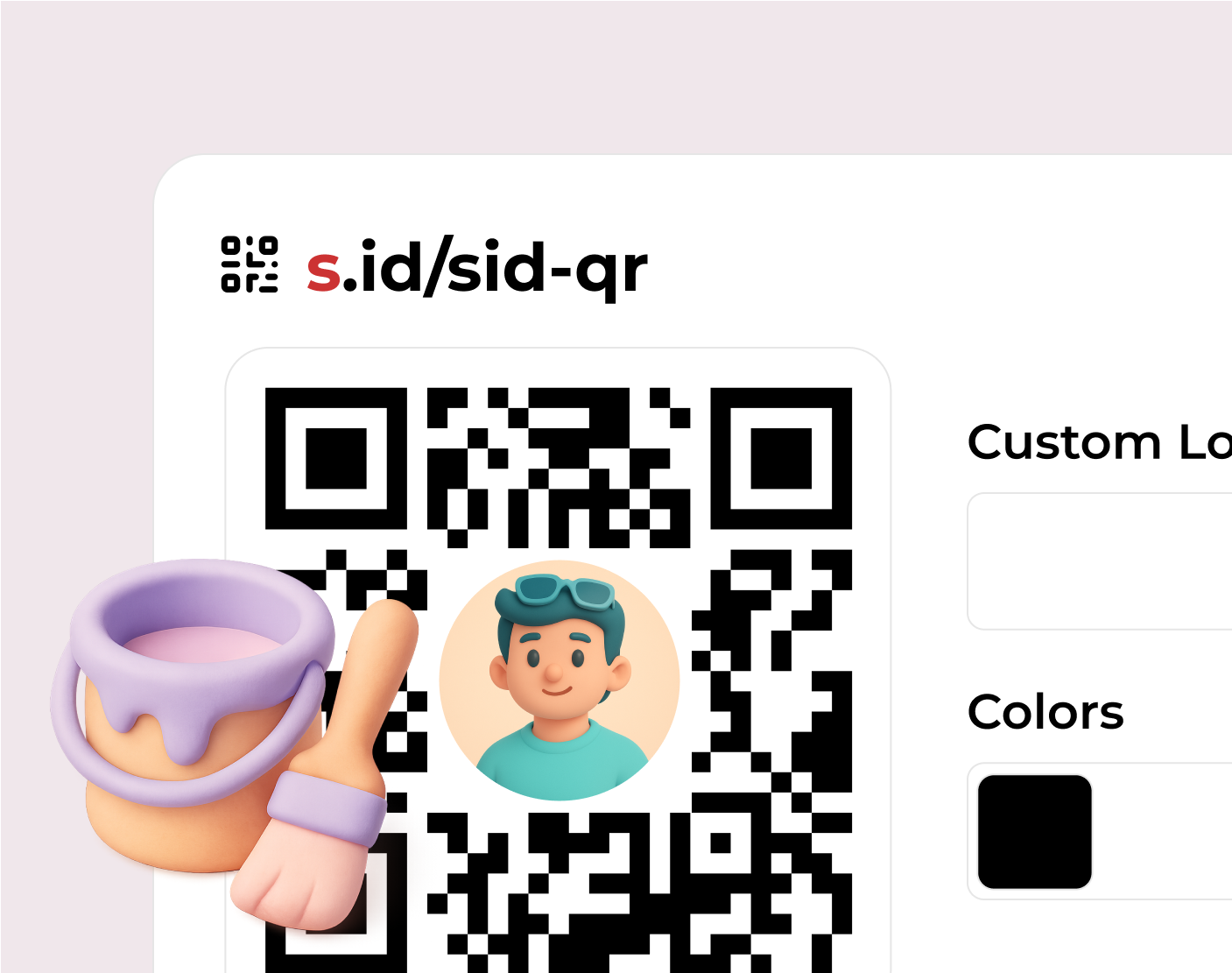
Match your QR code to your brand. Color, logo, and branding-removal options are available on eligible plans.

Use your QR code on menus, packaging, posters, business cards, tickets, or promotions to make links easier to open.
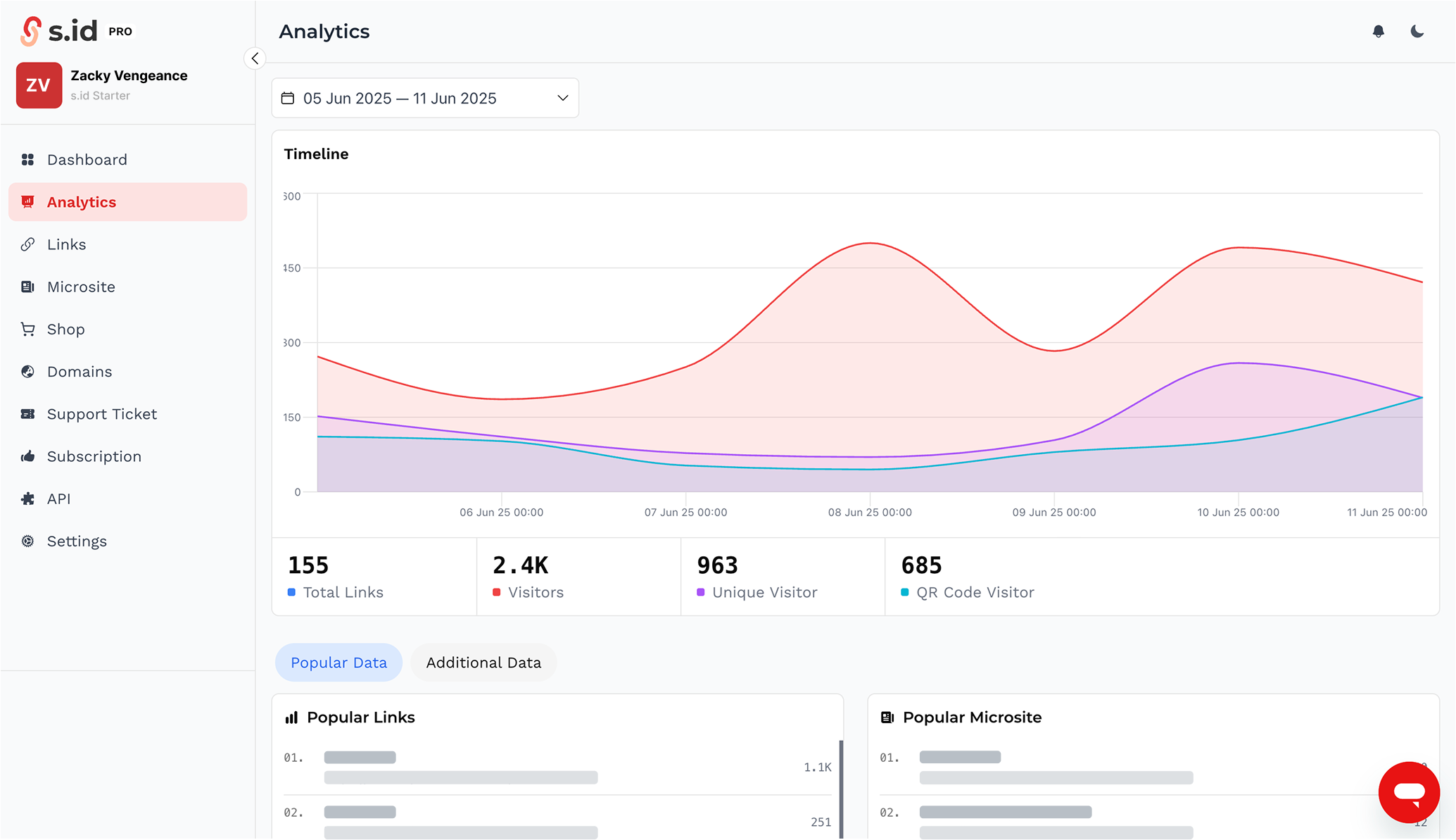
Review available visit data in your dashboard to understand QR code usage. Data detail and date ranges vary by plan.
A QR code is a two-dimensional code that a phone camera can read to open digital information. With the public s.id generator, enter a URL and download the result as a PNG.
An s.id QR code sends scanners through an s.id link to the destination page. Destination editing, colors, logos, and detailed analytics depend on the features included in your plan.
A dynamic QR code uses an intermediary link, so its destination can be updated without replacing the printed image. Destination editing on s.id is available on eligible plans.
Create and download a QR code from this page in four simple steps.
Enter a valid URL that should open when someone scans the QR code.
Complete the security check, then s.id will create the link and QR code.
Save the QR code as a PNG for digital or printed use.
Scan it with a phone and confirm that the destination opens correctly.
You can try basic QR creation immediately. Management, customization, and destination-editing features differ across plans.
Paste a URL and download a basic QR code from this page without a subscription. Usage limits and service policies still apply.
Use an s.id account to manage links and review the visit data available with your plan.
Colors, logos, branding removal, and destination URL changes are available on plans that include those features.
Clear answers about the generator, downloads, analytics, and plan-based features.
Paste a URL into the generator, select Create QR, complete the security check, and download the QR code as a PNG. Test it before using it in digital or printed materials.
Create a free QR code with s.id in 3 steps: enter URL, click Shorten, download QR. No sign-up, no credit card. Ready in seconds.
Learn MoreCreate a barcode (QR code) for free online with s.id. Enter URL, download high-res barcode, no registration, no payment required.
Learn MoreHow to create a free, easy, and fast QR code. Create a QR code for links, text, WhatsApp, social media, or business menus in 3 seconds without an app.
Learn MoreCreate contactless digital menus for your restaurant. Update prices instantly, support multiple languages. Reduce print costs and offer a seamless dining
Learn MoreCreate digital menus for your cafe or restaurant. Contactless ordering supported. Let customers browse your menu and order without a physical menu card.
Learn MoreCreate branded QR codes for receiving payments. Share your payment QR as a short link and track every scan with detailed analytics.
Learn MoreMore guides you might need
Paste a link, create a QR code, and download a PNG to share or print.
Try without signing up • PNG download • Advanced features vary by plan